Sample Accessibility Fix Report. Harbor & Pine is a fictional store we built with common accessibility defects, then tested with the same engine that scans your website.
Scan your website freeSample Accessibility Fix Report
harborandpine.example
- Platform:
- Shopify
- Generated:
- Sep 24, 2026
- Pages tested:
- 9
- Engine:
- axe-core 4.13.0
Summary
- We tested 9 pages of harborandpine.example (4 from your sitemap) on Sep 24, 2026 with axe-core 4.13.0 against WCAG 2.2 A and AA, plus a keyboard-only shopping test.
- 8 issue types failed automated WCAG tests (131 instances). 8 are marked Fix first.
- Journey blockedA keyboard-only shopper is blocked at: choose options and quantity.
- 4 items need a human check: automated tests flagged them but couldn't decide.
- Start with: Keyboard focus is trapped in the cookie banner; Product options can't be chosen with the keyboard; Buttons must have discernible text.
Automated tests find part of the accessibility issues on a site, not all. This report describes what our tests found and how to fix it. It is not legal advice and does not certify compliance with the ADA, the European Accessibility Act or any law.
Overview
- P1 · Fix firstBlocks visitors on key pages
- 8
- P2 · Fix nextSerious or moderate barriers
- 0
- P3 · ImproveMinor issues and best practices
- 2
Instances by severity
- Critical
- 73
- Serious
- 58
- Moderate
- 25
- Minor
- 0
- Verified failuresIssue types an automated test failed
- 10
- Needs reviewFlagged, but needs a human to decide
- 4
- Passed checksAutomated rules with no failures
- 32
- Not testedJourney steps and manual checks
- 7
We tested 9 pages, 4 of them sampled from your sitemap. Target dates are suggestions based on severity; agree the final dates with your developer.
Website overview
Detected from public evidence on the tested pages. A label can be wrong; it only decides which extra checks run.
Website type
- Online storeHigh confidence
- Runs on Shopify, a store platform
- Link to a cart
- Product or shop links
- Landing pageMedium confidence
- Only 6 internal pages linked
Detected technologies
- ShopifyHigh confidence
Shopify assets or scripts on the page
Checks for this site
- Universal checks: accessibility, SEO, speed, security and email
- E-commerce module: collection, product and cart pages, and a keyboard shopping journey up to the checkout button
- Shopify notes: theme and admin fix steps; platform-managed headers and cookies shown for reference
Keyboard shopping journey
We tried to shop using only the keyboard (Tab, Shift+Tab, Enter, Space, Escape), the way people who can't use a mouse do. We add one item to a cart in a throwaway session and stop at the checkout button: we never enter checkout or type personal or payment details. Goal: Get from the home page to the checkout button with only a keyboard.
01Reach the main navigation
PassedFocus reached “Shop” in the navigation after 21 Tab presses.
Expected: Pressing Tab from the top of the home page reaches the links in the main navigation.
- Note: A cookie banner held keyboard focus until we pressed Enter on “Accept all”.
How to reproduce
https://harborandpine.example/
- Open the home page.
- Click the browser's address bar, then press Tab repeatedly (Shift+Tab goes back).
Focus order we observed
“Shop”
02Open a product from a collection
PassedFocus reached “Trail Daypack 22L” after 9 Tab presses, and Enter opened /products/trail-daypack.
Expected: Tab reaches a product in the collection grid, and Enter opens its page.
How to reproduce
https://harborandpine.example/collections/all
- Open /collections/all.
- Press Tab until a product in the grid is highlighted, then press Enter.
Focus order we observed
“Harbor & Pine” → “Shop” → “New arrivals” → “Our story” → body > header.site > div.icons > button → “Account” → body > header.site > div.icons > a → “FeaturedPrice, low to highPrice, high to low” → “Trail Daypack 22L”
03Choose options and quantity
Failed3 product options can't receive keyboard focus: “S”, “M”, “L”. They respond to the mouse, but a keyboard user can't choose them.
Expected: Every product option (size, colour, variant) and the quantity field can be reached with Tab.
2.1.1 Keyboard · Confidence: high
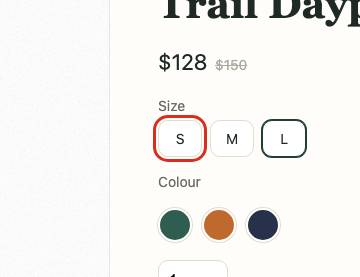
Choose options and quantity: the element that fails, outlined How to reproduce
https://harborandpine.example/products/trail-daypack
- Open /products/trail-daypack.
- Press Tab from the top of the page and note which controls receive focus before Add to cart.
Focus order we observed
“Harbor & Pine” → “Shop” → “New arrivals” → “Our story” → … 5 more … → body > header.site > div.icons > a → div.page.product > div.gallery > div.thumbs > button → div.page.product > div.gallery > div.thumbs > button → div.page.product > div.gallery > div.thumbs > button → div.page.product > div > div.swatches > button → div.page.product > div > div.swatches > button → div.page.product > div > div.swatches > button → “1” → “Add to cart”
Element <div class="size-option" data-fr="opt-1">S</div>04Add to cart with the keyboard
Needs reviewEnter on Add to cart worked (the cart count in the header changed, an “added to cart” message appeared), but we found no status message or focused dialog, so screen reader users may not hear that the item was added.
Expected: Enter on Add to cart adds the item, and the confirmation is announced: a status message, a dialog that takes focus, or the cart page.
4.1.3 Status Messages · Confidence: medium
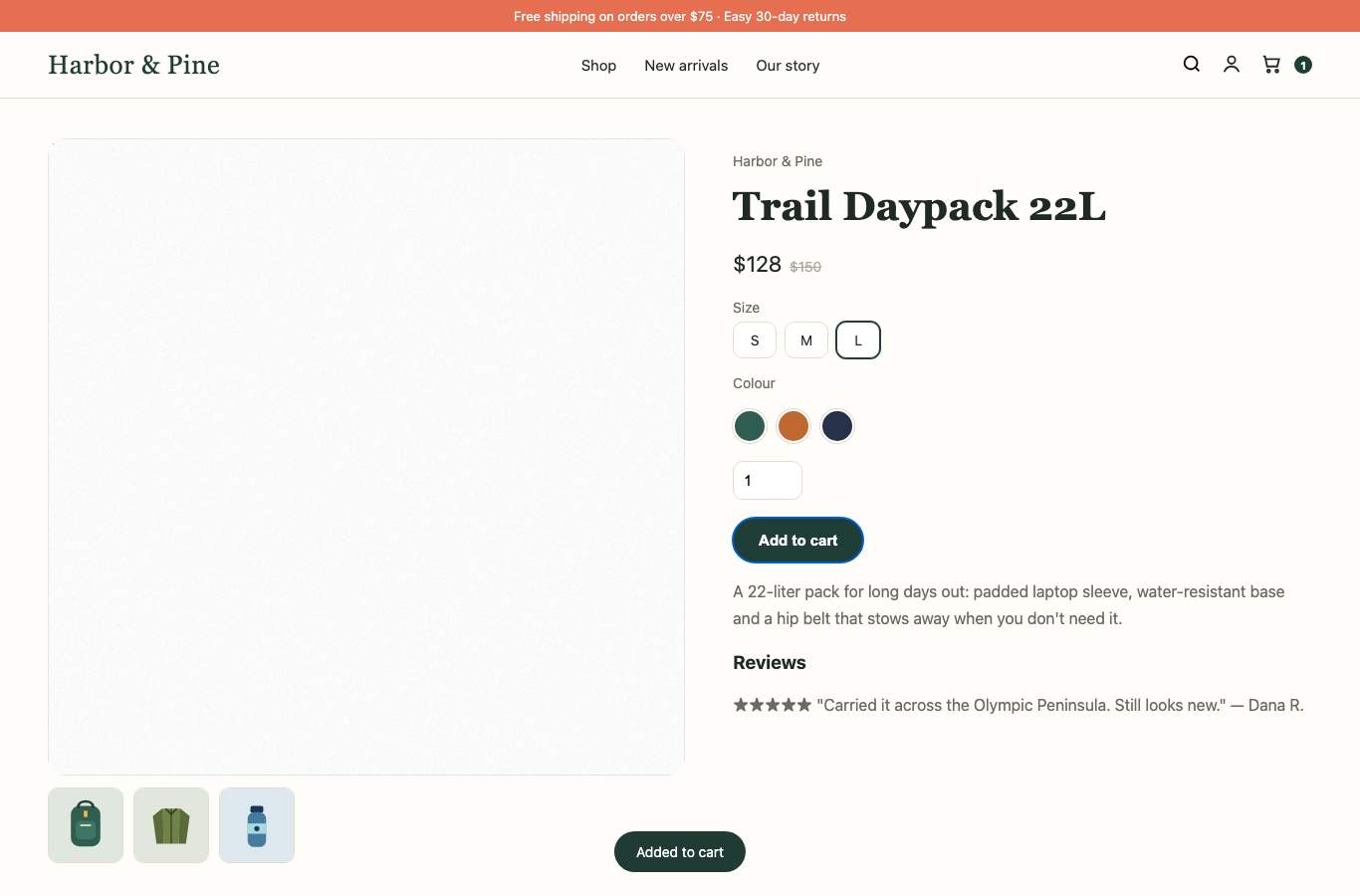
Add to cart with the keyboard: the page at this step How to reproduce
https://harborandpine.example/products/trail-daypack
- Open /products/trail-daypack.
- Press Tab until Add to cart is focused, then press Enter.
- Listen with a screen reader (VoiceOver: Cmd+F5) for a confirmation.
05Change the cart and reach checkout
PassedReached all 4 cart controls and the checkout button (“Check out”) in 12 Tab presses. We did not press it.
Expected: Quantity fields, remove buttons and the checkout button can all be reached with Tab.
How to reproduce
https://harborandpine.example/cart
- Add any product to the cart and open the cart page.
- Press Tab and check that quantity fields, remove buttons and the checkout button all receive focus.
Focus order we observed
“Harbor & Pine” → “Shop” → “New arrivals” → “Our story” → body > header.site > div.icons > button → “Account” → body > header.site > div.icons > a → “1” → tbody > tr > td > button.remove → “2” → tbody > tr > td > button.remove → “Check out”
06Checkout
Not testedWe stop at the checkout button: we never enter checkout, create an order or type payment details. On Shopify the checkout pages are run by Shopify, not your theme. Check checkout by hand (see Manual checks).
Letter claim map
Each claim in the letter, matched to the scan evidence. A factual comparison, not legal advice.
- Reproduced
“Images lack alternative text, so product photos are not described.”
Images without text alternatives. 10 instances on 3 of 5 pages tested.
image-alt
- Reproduced
“Text has insufficient color contrast against its background, including sale badges and prices.”
Low color contrast. 16 instances on 5 of 5 pages tested.
color-contrast
- Reproduced
“The website cannot be navigated using a keyboard alone.”
Keyboard access and focus. Keyboard focus gets stuck in the cookie banner.
- Reproduced
“Form fields do not have labels, including the newsletter sign-up and the quantity fields in the cart.”
Form fields without labels. 4 instances on 3 of 5 pages tested.
select-name, label
- Manual check
“Product videos do not have captions.”
Video and audio captions. Automated scans can't judge captions. Check every product or brand video for accurate captions and a transcript.
- Manual check
“Our client is legally blind and uses screen reader software.”
Other issues. This is a general statement. Test key flows (search, product page, add to cart, checkout) with a screen reader such as VoiceOver or NVDA.
Remediation plan
| Priority | Issue | Status | WCAG | Instances | Owner | Target date |
|---|---|---|---|---|---|---|
| P1 | Keyboard focus is trapped in the cookie banner | Verified | 2.1.2 | 1 | app vendor | 2026-10-08 |
| P1 | Product options can't be chosen with the keyboard | Verified | 2.1.1 | 1 | theme developer | 2026-10-08 |
| P1 | Buttons must have discernible text | Verified | 4.1.2 | 41 | theme developer | 2026-10-08 |
| P1 | Images must have alternative text | Verified | 1.1.1 | 22 | content editor | 2026-10-08 |
| P1 | Form elements must have labels | Verified | 4.1.2 | 7 | theme developer | 2026-10-08 |
| P1 | Select element must have an accessible name | Verified | 4.1.2 | 1 | theme developer | 2026-10-08 |
| P1 | Links must have discernible text | Verified | 2.4.4, 4.1.2 | 36 | theme developer | 2026-10-08 |
| P1 | Elements must meet minimum color contrast ratio thresholds | Verified | 1.4.3 | 22 | store owner (admin settings) | 2026-10-08 |
| P3 | All page content should be contained by landmarks | Verified | Best practice | 18 | theme developer | 2026-11-23 |
| P3 | Heading levels should only increase by one | Verified | Best practice | 7 | theme developer | 2026-11-23 |
How to fix each issue
Keyboard focus is trapped in the cookie banner
effort: moderate · owner: app vendor · 2.1.2 No Keyboard Trap
When a keyboard user presses Tab, focus cycles through a few elements and never reaches the rest of the page.
Keyboard-only and screen reader users cannot shop at all if focus is trapped (WCAG 2.1.2 No Keyboard Trap).
Evidence
- Found by
- Keyboard test (Tab through the home page)
- Status · confidence
- Verified failure · high
- Detected
- Sep 24, 2026 (UTC)
- Where
- 1 instance on 1 page
Expected: Pressing Tab moves through every interactive element on the page and on to the rest of the page.
Observed: After 40 Tab presses, focus kept cycling through: Settings, Accept all.
How to reproduce
- Open the home page.
- Click the address bar, then press Tab repeatedly.
- Focus keeps returning to the same few elements.
Failing elements (6 shown)
SettingsAccept allSettingsAccept allSettingsAccept allPages affected (1)
- https://harborandpine.example/
How to fix it
General guidance- Check your cookie or consent banner app's settings for an accessibility or focus-trap option, or ask the vendor to fix it.
- A modal may keep focus inside it only while it is open, and must close with the Escape key and return focus to where it came from.
Fix with AIShow the prompt
Paste this into ChatGPT, Claude, Cursor or Copilot together with your theme file. Review the change before you publish it.
I run a Shopify store (Online Store 2.0 theme, Liquid templates) at harborandpine.example. An accessibility test found this problem and I want to fix it in my theme.

Problem: Keyboard focus is trapped in the cookie banner (WCAG 2.1.2).
Where: 1 instance on 1 page, for example /.

One failing element, as the browser rendered it:
```html
Settings
```

Why it matters: Keyboard-only and screen reader users cannot shop at all if focus is trapped (WCAG 2.1.2 No Keyboard Trap).

What needs to change:
- Check your cookie or consent banner app's settings for an accessibility or focus-trap option, or ask the vendor to fix it.
- A modal may keep focus inside it only while it is open, and must close with the Escape key and return focus to where it came from.

Rules for your answer:
- Show the exact edit as before and after, and name the file or setting it goes in. If you need to see my file first, ask me to paste it.
- Keep the visual design and all existing behaviour the same.
- Don't invent product names, prices or text; use placeholders I can fill in.
- End with how I can check the fix myself.
- Include how to confirm it with the keyboard and a screen reader.
Check your fix
- Load the home page, press Tab repeatedly and confirm focus reaches the main navigation and content.
Detected by an automated keyboard probe; confirm by hand.
Product options can't be chosen with the keyboard
effort: moderate · owner: theme developer · 2.1.1 Keyboard
Size, colour or variant options respond to the mouse but can't receive keyboard focus, so keyboard users can't choose a variant.
Keyboard-only shoppers, including many screen reader users, can't get past this step (WCAG 2.1.1).
Evidence
- Found by
- Keyboard journey
- Status · confidence
- Verified failure · high
- Detected
- Sep 24, 2026 (UTC)
- Where
- 1 instance on 1 page
Expected: Every product option (size, colour, variant) and the quantity field can be reached with Tab.
Observed: 3 product options can't receive keyboard focus: “S”, “M”, “L”. They respond to the mouse, but a keyboard user can't choose them.
How to reproduce
- Open /products/trail-daypack.
- Press Tab from the top of the page and note which controls receive focus before Add to cart.
Failing elements (1 shown)
<div class="size-option" data-fr="opt-1">S</div>Pages affected (1)
- https://harborandpine.example/products/trail-daypack
How to fix it
General guidance- Build option pickers from native radio buttons (or a <select>) with visible labels; style the label as the swatch.
- If you keep custom elements, each option needs tabindex="0", role="radio" with aria-checked inside a role="radiogroup", and arrow-key and Space handling. Native radios give you all of this for free.
Code
Implementation examples for your developer. We don't have your theme's source code, so file locations are hints, not exact paths.
<div class="size-option" data-fr="opt-1">S</div><fieldset class="variant-picker">
<legend>Size</legend>
<input type="radio" id="size-s" name="Size" value="S" class="visually-hidden">
<label for="size-s" class="size-option">S</label>
<input type="radio" id="size-m" name="Size" value="M" class="visually-hidden">
<label for="size-m" class="size-option">M</label>
</fieldset>Each option is a real radio button, reachable with Tab and changed with the arrow keys; the label keeps your swatch styling. Use your option names and values.
Fix with AIShow the prompt
Paste this into ChatGPT, Claude, Cursor or Copilot together with your theme file. Review the change before you publish it.
I run a Shopify store (Online Store 2.0 theme, Liquid templates) at harborandpine.example. An accessibility test found this problem and I want to fix it in my theme.

Problem: Product options can't be chosen with the keyboard (WCAG 2.1.1).
Where: 1 instance on 1 page, for example /products/trail-daypack.

One failing element, as the browser rendered it:
```html
<div class="size-option" data-fr="opt-1">S</div>
```

Why it matters: Keyboard-only shoppers, including many screen reader users, can't get past this step (WCAG 2.1.1).

What needs to change:
- Build option pickers from native radio buttons (or a <select>) with visible labels; style the label as the swatch.
- If you keep custom elements, each option needs tabindex="0", role="radio" with aria-checked inside a role="radiogroup", and arrow-key and Space handling. Native radios give you all of this for free.

A suggested change (Your theme's product form (variant picker)):
```html
<fieldset class="variant-picker">
  <legend>Size</legend>
  <input type="radio" id="size-s" name="Size" value="S" class="visually-hidden">
  <label for="size-s" class="size-option">S</label>
  <input type="radio" id="size-m" name="Size" value="M" class="visually-hidden">
  <label for="size-m" class="size-option">M</label>
</fieldset>
```

Rules for your answer:
- Show the exact edit as before and after, and name the file or setting it goes in. If you need to see my file first, ask me to paste it.
- Keep the visual design and all existing behaviour the same.
- Don't invent product names, prices or text; use placeholders I can fill in.
- End with how I can check the fix myself.
- Include how to confirm it with the keyboard and a screen reader.
Check your fix
- Repeat the reproduction steps with the keyboard only.
- Request a re-test from this report: the journey runs again.
Buttons must have discernible text
effort: quick · owner: theme developer · 4.1.2 Name, Role, Value
Some buttons have no accessible name, so screen reader users hear only 'button'.
WCAG 4.1.2 requires every control to have a name. Unnamed buttons often include quantity steppers, close buttons and slider arrows.
Evidence
- Found by
- axe-core automated rule
- Status · confidence
- Verified failure · high
- Detected
- Sep 24, 2026 (UTC)
- Where
- 41 instances on 9 pages
Expected: Buttons must have discernible text
Observed: Element does not have inner text that is visible to screen readers aria-label attribute does not exist or is empty aria-labelledby attribute does not exist, references elements that do not exist or references elements that are empty Element has no title attribute Element does not have an implicit (wrapped) <label> Element does not have an explicit <label> Element's default semantics were not overridden with role="none" or role="presentation"
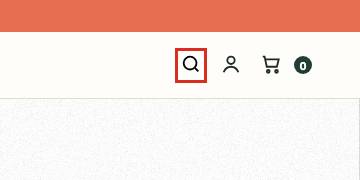
How to reproduce
- Open https://harborandpine.example/ in Chrome or Edge.
- Open DevTools (F12) › Elements, press Ctrl+F (Cmd+F on Mac) and search for: .icons > button[type="button"]
- In DevTools' Accessibility pane, the element's computed Name is empty.
- Or run the free axe DevTools browser extension on the page: it reports this as "button-name".
Failing elements (4 shown)
<button type="button"><svg viewBox="0 0 24 24" fill="none" stroke="currentColor" stroke-width="2"><circle cx="11" cy="11" r="7"></circle><path d="M20 20l-3.5-3.5"></path></svg></button><button type="button"><img src="/img/daypack.svg"></button><button type="button"><img src="/img/jacket.svg"></button><button type="button"><img src="/img/bottle.svg"></button>Pages affected (9)
- https://harborandpine.example/
- https://harborandpine.example/collections/all
- https://harborandpine.example/products/trail-daypack
- https://harborandpine.example/cart
- https://harborandpine.example/pages/about
- https://harborandpine.example/products/pine-wool-beanie
- https://harborandpine.example/products/enamel-camp-mug
- https://harborandpine.example/products/harbor-lantern
- https://harborandpine.example/products/insulated-bottle
How to fix it
Code built from your page's markup- Find the buttons in the examples below.
- Add visible text, visually hidden text, or an aria-label that says what the button does (for example aria-label="Close" or aria-label="Increase quantity").
Code
Implementation examples for your developer. We don't have your theme's source code, so file locations are hints, not exact paths.
<button type="button">…</button><button type="button" aria-label="[What this button does]">…</button>Replace the bracketed text with what the button does. Visible text or visually hidden text inside the button works too.
<button type="button"><img src="/img/daypack.svg"></button><button type="button" aria-label="[Describe the image, e.g. Back view]"><img src="/img/daypack.svg"></button>Replace the bracketed text with what the button does. Visible text or visually hidden text inside the button works too.
<button type="button"><img src="/img/jacket.svg"></button><button type="button" aria-label="[Describe the image, e.g. Back view]"><img src="/img/jacket.svg"></button>Replace the bracketed text with what the button does. Visible text or visually hidden text inside the button works too.
<button type="button"><img src="/img/bottle.svg"></button><button type="button" aria-label="[Describe the image, e.g. Back view]"><img src="/img/bottle.svg"></button>Replace the bracketed text with what the button does. Visible text or visually hidden text inside the button works too.
Fix with AIShow the prompt
Paste this into ChatGPT, Claude, Cursor or Copilot together with your theme file. Review the change before you publish it.
I run a Shopify store (Online Store 2.0 theme, Liquid templates) at harborandpine.example. An accessibility test found this problem and I want to fix it in my theme.

Problem: Buttons must have discernible text (WCAG 4.1.2).
Where: 41 instances on 9 pages, for example /, /collections/all, /products/trail-daypack, /cart.

One failing element, as the browser rendered it:
```html
<button type="button"><svg viewBox="0 0 24 24" fill="none" stroke="currentColor" stroke-width="2"><circle cx="11" cy="11" r="7"></circle><path d="M20 20l-3.5-3.5"></path></svg></button>
```

Why it matters: WCAG 4.1.2 requires every control to have a name. Unnamed buttons often include quantity steppers, close buttons and slider arrows.

What needs to change:
- Find the buttons in the examples below.
- Add visible text, visually hidden text, or an aria-label that says what the button does (for example aria-label="Close" or aria-label="Increase quantity").

A suggested change (Your theme code (search it for the markup shown)):
```html
<button type="button" aria-label="[What this button does]">…</button>
```

Rules for your answer:
- Show the exact edit as before and after, and name the file or setting it goes in. If you need to see my file first, ask me to paste it.
- Keep the visual design and all existing behaviour the same.
- Don't invent product names, prices or text; use placeholders I can fill in.
- End with how I can check the fix myself.
- Include how to confirm it with the keyboard and a screen reader.
Check your fix
- Re-scan the affected pages.
- Check the buttons with a screen reader.
Detailed guidance: https://dequeuniversity.com/rules/axe/4.13/button-name?application=playwright
Images must have alternative text
effort: moderate · owner: content editor · 1.1.1 Non-text Content
Images are missing a text alternative, so screen reader users don't know what they show.
WCAG 1.1.1 requires a text alternative for meaningful images. Without it, a screen reader user can't tell which product a photo shows.
Evidence
- Found by
- axe-core automated rule
- Status · confidence
- Verified failure · high
- Detected
- Sep 24, 2026 (UTC)
- Where
- 22 instances on 7 pages
Expected: Images must have alternative text
Observed: Element does not have an alt attribute aria-label attribute does not exist or is empty aria-labelledby attribute does not exist, references elements that do not exist or references elements that are empty Element has no title attribute Element's default semantics were not overridden with role="none" or role="presentation"
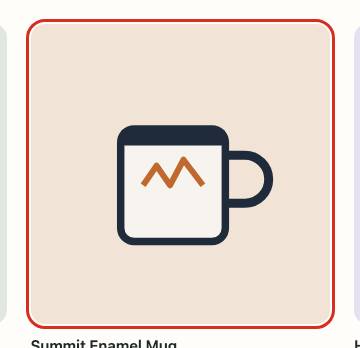
How to reproduce
- Open https://harborandpine.example/ in Chrome or Edge.
- Open DevTools (F12) › Elements, press Ctrl+F (Cmd+F on Mac) and search for: img[src$="hero-photo.jpg"]
- In DevTools' Accessibility pane, the element's computed Name is empty.
- Or run the free axe DevTools browser extension on the page: it reports this as "image-alt".
Failing elements (4 shown)
<img src="/img/hero-photo.jpg" loading="lazy"><img src="/img/mug.svg"><img src="/img/beanie.svg"><img src="/img/jacket.svg">Pages affected (7)
- https://harborandpine.example/
- https://harborandpine.example/collections/all
- https://harborandpine.example/products/trail-daypack
- https://harborandpine.example/products/pine-wool-beanie
- https://harborandpine.example/products/enamel-camp-mug
- https://harborandpine.example/products/harbor-lantern
- https://harborandpine.example/products/insulated-bottle
How to fix it
Code built from your page's markup- In Shopify admin, open Products > [product] > Media, click each image and fill in 'Alt text'. For section images, open Online Store > Themes > Customize and set the image alt text in the section settings.
- Describe what matters to a shopper: product name, color and the angle shown (for example 'Canvas tote in olive, front view').
- Decorative images should have an empty alt attribute (alt="") so screen readers skip them.
Code
Implementation examples for your developer. We don't have your theme's source code, so file locations are hints, not exact paths.
<img src="/img/hero-photo.jpg" loading="lazy"><img src="/img/hero-photo.jpg" loading="lazy" alt="[Describe the image for a shopper]">Describe what the image shows (for a product photo: product, colour, angle). If the image is purely decorative, use alt="" instead so screen readers skip it.
<img src="/img/mug.svg"><img src="/img/mug.svg" alt="[Describe the image for a shopper]">Describe what the image shows (for a product photo: product, colour, angle). If the image is purely decorative, use alt="" instead so screen readers skip it.
<img src="/img/beanie.svg"><img src="/img/beanie.svg" alt="[Describe the image for a shopper]">Describe what the image shows (for a product photo: product, colour, angle). If the image is purely decorative, use alt="" instead so screen readers skip it.
<img src="/img/jacket.svg"><img src="/img/jacket.svg" alt="[Describe the image for a shopper]">Describe what the image shows (for a product photo: product, colour, angle). If the image is purely decorative, use alt="" instead so screen readers skip it.
Fix with AIShow the prompt
Paste this into ChatGPT, Claude, Cursor or Copilot together with your theme file. Review the change before you publish it.
I run a Shopify store (Online Store 2.0 theme, Liquid templates) at harborandpine.example. An accessibility test found this problem and I want to fix it in my theme.

Problem: Images must have alternative text (WCAG 1.1.1).
Where: 22 instances on 7 pages, for example /, /collections/all, /products/trail-daypack, /products/pine-wool-beanie.

One failing element, as the browser rendered it:
```html
<img src="/img/hero-photo.jpg" loading="lazy">
```

Why it matters: WCAG 1.1.1 requires a text alternative for meaningful images. Without it, a screen reader user can't tell which product a photo shows.

What needs to change:
- In Shopify admin, open Products > [product] > Media, click each image and fill in 'Alt text'. For section images, open Online Store > Themes > Customize and set the image alt text in the section settings.
- Describe what matters to a shopper: product name, color and the angle shown (for example 'Canvas tote in olive, front view').
- Decorative images should have an empty alt attribute (alt="") so screen readers skip them.

A suggested change (Product photos: Shopify admin › Products › Media › Alt text. Other images: your theme code):
```html
<img src="/img/hero-photo.jpg" loading="lazy" alt="[Describe the image for a shopper]">
```

Rules for your answer:
- Show the exact edit as before and after, and name the file or setting it goes in. If you need to see my file first, ask me to paste it.
- Keep the visual design and all existing behaviour the same.
- Don't invent product names, prices or text; use placeholders I can fill in.
- End with how I can check the fix myself.
- Include how to confirm it with the keyboard and a screen reader.
Check your fix
- Re-scan the affected pages.
- Use a screen reader (VoiceOver: Cmd+F5 on Mac) to hear the product images announced.
Detailed guidance: https://dequeuniversity.com/rules/axe/4.13/image-alt?application=playwright
Form elements must have labels
effort: quick · owner: theme developer · 4.1.2 Name, Role, Value
Some form fields have no label, so screen reader users don't know what to enter.
WCAG 1.3.1, 3.3.2 and 4.1.2 require form fields to have labels. Newsletter sign-up and search fields are common offenders.
Evidence
- Found by
- axe-core automated rule
- Status · confidence
- Verified failure · high
- Detected
- Sep 24, 2026 (UTC)
- Where
- 7 instances on 6 pages
Expected: Form elements must have labels
Observed: Element does not have an implicit (wrapped) <label> Element does not have an explicit <label> aria-label attribute does not exist or is empty aria-labelledby attribute does not exist, references elements that do not exist or references elements that are empty Element has no title attribute Element has no placeholder attribute Element's default semantics were not overridden with role="none" or role="presentation"
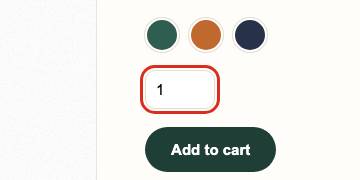
How to reproduce
- Open https://harborandpine.example/products/trail-daypack in Chrome or Edge.
- Open DevTools (F12) › Elements, press Ctrl+F (Cmd+F on Mac) and search for: input
- In DevTools' Accessibility pane, the element's computed Name is empty.
- Or run the free axe DevTools browser extension on the page: it reports this as "label".
Failing elements (2 shown)
<input type="number" value="1" min="1"><input type="number" value="2" min="1">Pages affected (6)
- https://harborandpine.example/products/trail-daypack
- https://harborandpine.example/cart
- https://harborandpine.example/products/pine-wool-beanie
- https://harborandpine.example/products/enamel-camp-mug
- https://harborandpine.example/products/harbor-lantern
- https://harborandpine.example/products/insulated-bottle
How to fix it
Code built from your page's markup- Give each field a <label for="field-id"> element, or at minimum an aria-label.
- Placeholder text alone does not count as a label.
Code
Implementation examples for your developer. We don't have your theme's source code, so file locations are hints, not exact paths.
<input type="number" value="1" min="1"><input type="number" value="1" min="1" aria-label="Quantity">The field has no id, so the quickest fix is an aria-label. A visible <label> is better for everyone. Label text "Quantity" is guessed from the field; adjust if needed.
<input type="number" value="2" min="1"><input type="number" value="2" min="1" aria-label="Quantity">The field has no id, so the quickest fix is an aria-label. A visible <label> is better for everyone. Label text "Quantity" is guessed from the field; adjust if needed.
Fix with AIShow the prompt
Paste this into ChatGPT, Claude, Cursor or Copilot together with your theme file. Review the change before you publish it.
I run a Shopify store (Online Store 2.0 theme, Liquid templates) at harborandpine.example. An accessibility test found this problem and I want to fix it in my theme.

Problem: Form elements must have labels (WCAG 4.1.2).
Where: 7 instances on 6 pages, for example /products/trail-daypack, /cart, /products/pine-wool-beanie, /products/enamel-camp-mug.

One failing element, as the browser rendered it:
```html
<input type="number" value="1" min="1">
```

Why it matters: WCAG 1.3.1, 3.3.2 and 4.1.2 require form fields to have labels. Newsletter sign-up and search fields are common offenders.

What needs to change:
- Give each field a <label for="field-id"> element, or at minimum an aria-label.
- Placeholder text alone does not count as a label.

A suggested change (Your theme code (search it for the markup shown)):
```html
<input type="number" value="1" min="1" aria-label="Quantity">
```

Rules for your answer:
- Show the exact edit as before and after, and name the file or setting it goes in. If you need to see my file first, ask me to paste it.
- Keep the visual design and all existing behaviour the same.
- Don't invent product names, prices or text; use placeholders I can fill in.
- End with how I can check the fix myself.
- Include how to confirm it with the keyboard and a screen reader.
Check your fix
- Re-scan and confirm the label rule no longer fails.
- Click each label and check it focuses its field.
Detailed guidance: https://dequeuniversity.com/rules/axe/4.13/label?application=playwright
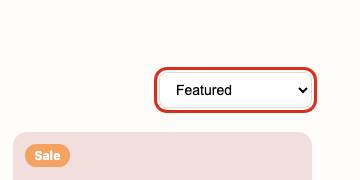
Select element must have an accessible name
effort: quick · owner: theme developer · 4.1.2 Name, Role, Value
A dropdown (often a sort or variant selector) has no label.
WCAG 4.1.2 requires select menus to have an accessible name.
Evidence
- Found by
- axe-core automated rule
- Status · confidence
- Verified failure · high
- Detected
- Sep 24, 2026 (UTC)
- Where
- 1 instance on 1 page
Expected: Select element must have an accessible name
Observed: Element does not have an implicit (wrapped) <label> Element does not have an explicit <label> aria-label attribute does not exist or is empty aria-labelledby attribute does not exist, references elements that do not exist or references elements that are empty Element has no title attribute Element's default semantics were not overridden with role="none" or role="presentation"
How to reproduce
- Open https://harborandpine.example/collections/all in Chrome or Edge.
- Open DevTools (F12) › Elements, press Ctrl+F (Cmd+F on Mac) and search for: select
- In DevTools' Accessibility pane, the element's computed Name is empty.
- Or run the free axe DevTools browser extension on the page: it reports this as "select-name".
Failing elements (1 shown)
<select><option>Featured</option><option>Price, low to high</option><option>Price, high to low</option></select>Pages affected (1)
- https://harborandpine.example/collections/all
How to fix it
Code built from your page's markup- Add a <label> linked to the select, or an aria-label such as aria-label="Sort by".
Code
Implementation examples for your developer. We don't have your theme's source code, so file locations are hints, not exact paths.
<select><option>Featured</option><option>Price, low to high</option><option>Price, high to low</option></select><select aria-label="[Field label]"><option>Featured</option><option>Price, low to high</option><option>Price, high to low</option></select>The field has no id, so the quickest fix is an aria-label. A visible <label> is better for everyone. Replace the bracketed text with the field's label.
Fix with AIShow the prompt
Paste this into ChatGPT, Claude, Cursor or Copilot together with your theme file. Review the change before you publish it.
I run a Shopify store (Online Store 2.0 theme, Liquid templates) at harborandpine.example. An accessibility test found this problem and I want to fix it in my theme.

Problem: Select element must have an accessible name (WCAG 4.1.2).
Where: 1 instance on 1 page, for example /collections/all.

One failing element, as the browser rendered it:
```html
<select><option>Featured</option><option>Price, low to high</option><option>Price, high to low</option></select>
```

Why it matters: WCAG 4.1.2 requires select menus to have an accessible name.

What needs to change:
- Add a <label> linked to the select, or an aria-label such as aria-label="Sort by".

A suggested change (Your theme code (search it for the markup shown)):
```html
<select aria-label="[Field label]"><option>Featured</option><option>Price, low to high</option><option>Price, high to low</option></select>
```

Rules for your answer:
- Show the exact edit as before and after, and name the file or setting it goes in. If you need to see my file first, ask me to paste it.
- Keep the visual design and all existing behaviour the same.
- Don't invent product names, prices or text; use placeholders I can fill in.
- End with how I can check the fix myself.
- Include how to confirm it with the keyboard and a screen reader.
Check your fix
- Re-scan the collection and product pages.
Detailed guidance: https://dequeuniversity.com/rules/axe/4.13/select-name?application=playwright
Links must have discernible text
effort: quick · owner: theme developer · 2.4.4 Link Purpose (In Context), 4.1.2 Name, Role, Value
Some links have no text a screen reader can announce, often icon-only links such as social icons or the cart icon.
WCAG 2.4.4 and 4.1.2 require links to have an accessible name that describes their purpose.
Evidence
- Found by
- axe-core automated rule
- Status · confidence
- Verified failure · high
- Detected
- Sep 24, 2026 (UTC)
- Where
- 36 instances on 9 pages
Expected: Links must have discernible text
Observed: Element is in tab order and does not have accessible text Also: Element does not have text that is visible to screen readers aria-label attribute does not exist or is empty aria-labelledby attribute does not exist, references elements that do not exist or references elements that are empty Element has no title attribute
How to reproduce
- Open https://harborandpine.example/ in Chrome or Edge.
- Open DevTools (F12) › Elements, press Ctrl+F (Cmd+F on Mac) and search for: a[href$="cart"]
- In DevTools' Accessibility pane, the element's computed Name is empty.
- Or run the free axe DevTools browser extension on the page: it reports this as "link-name".
Failing elements (4 shown)
<a href="/cart"><svg viewBox="0 0 24 24" fill="none" stroke="currentColor" stroke-width="2"><path d="M3 4h2l2.4 11h11l2-8H6.5"></path><circle cx="9" cy="20" r="1.5"></circle><circle cx="18" cy="20" r="1.5"></circle></svg></a><a href="https://instagram.example/harborandpine"><svg viewBox="0 0 24 24" fill="none" stroke="currentColor" stroke-width="2"><rect x="3" y="3" width="18" height="18" rx="5"></rect><circle cx="12" cy="12" r="4"></circle></svg></a><a href="https://facebook.example/harborandpine"><svg viewBox="0 0 24 24" fill="currentColor"><path d="M14 8h3V4h-3c-2.8 0-4 1.8-4 4v2H7v4h3v8h4v-8h3l1-4h-4V8.5c0-.3.2-.5.5-.5z"></path></svg></a><a href="https://x.example/harborandpine"><svg viewBox="0 0 24 24" fill="none" stroke="currentColor" stroke-width="2"><path d="M4 4l16 16M20 4L4 20"></path></svg></a>Pages affected (9)
- https://harborandpine.example/
- https://harborandpine.example/collections/all
- https://harborandpine.example/products/trail-daypack
- https://harborandpine.example/cart
- https://harborandpine.example/pages/about
- https://harborandpine.example/products/pine-wool-beanie
- https://harborandpine.example/products/enamel-camp-mug
- https://harborandpine.example/products/harbor-lantern
- https://harborandpine.example/products/insulated-bottle
How to fix it
Code built from your page's markup- Find the links in the examples below. Most are icons or images inside an <a> tag.
- Add visually hidden text inside the link, or an aria-label such as aria-label="Instagram" or aria-label="Cart".
- If the link wraps an image, give the image meaningful alt text instead.
Code
Implementation examples for your developer. We don't have your theme's source code, so file locations are hints, not exact paths.
<a href="/cart">…</a><a href="/cart" aria-label="Cart">…</a>Gives the link the name "Cart", guessed from its link or classes. Check it says what the link does.
<a href="https://instagram.example/harborandpine">…</a><a href="https://instagram.example/harborandpine" aria-label="Instagram">…</a>Gives the link the name "Instagram", guessed from its link or classes. Check it says what the link does.
<a href="https://facebook.example/harborandpine">…</a><a href="https://facebook.example/harborandpine" aria-label="Facebook">…</a>Gives the link the name "Facebook", guessed from its link or classes. Check it says what the link does.
<a href="https://x.example/harborandpine">…</a><a href="https://x.example/harborandpine" aria-label="X (Twitter)">…</a>Gives the link the name "X (Twitter)", guessed from its link or classes. Check it says what the link does.
Fix with AIShow the prompt
Paste this into ChatGPT, Claude, Cursor or Copilot together with your theme file. Review the change before you publish it.
I run a Shopify store (Online Store 2.0 theme, Liquid templates) at harborandpine.example. An accessibility test found this problem and I want to fix it in my theme.

Problem: Links must have discernible text (WCAG 2.4.4, 4.1.2).
Where: 36 instances on 9 pages, for example /, /collections/all, /products/trail-daypack, /cart.

One failing element, as the browser rendered it:
```html
<a href="/cart"><svg viewBox="0 0 24 24" fill="none" stroke="currentColor" stroke-width="2"><path d="M3 4h2l2.4 11h11l2-8H6.5"></path><circle cx="9" cy="20" r="1.5"></circle><circle cx="18" cy="20" r="1.5"></circle></svg></a>
```

Why it matters: WCAG 2.4.4 and 4.1.2 require links to have an accessible name that describes their purpose.

What needs to change:
- Find the links in the examples below. Most are icons or images inside an <a> tag.
- Add visually hidden text inside the link, or an aria-label such as aria-label="Instagram" or aria-label="Cart".
- If the link wraps an image, give the image meaningful alt text instead.

A suggested change (Your theme code (search it for the markup shown)):
```html
<a href="/cart" aria-label="Cart">…</a>
```

Rules for your answer:
- Show the exact edit as before and after, and name the file or setting it goes in. If you need to see my file first, ask me to paste it.
- Keep the visual design and all existing behaviour the same.
- Don't invent product names, prices or text; use placeholders I can fill in.
- End with how I can check the fix myself.
- Include how to confirm it with the keyboard and a screen reader.
Check your fix
- Re-scan and confirm link-name is gone.
- Tab to each link with a screen reader running and listen to the name.
Detailed guidance: https://dequeuniversity.com/rules/axe/4.13/link-name?application=playwright
Elements must meet minimum color contrast ratio thresholds
effort: quick · owner: store owner (admin settings) · 1.4.3 Contrast (Minimum)
Some text doesn't stand out enough from its background to be read by people with low vision.
WCAG 1.4.3 requires a contrast ratio of at least 4.5:1 for normal text and 3:1 for large text. Faint prices, badges and banners are hard to read for people with low vision, and for everyone in bright light.
Evidence
- Found by
- axe-core automated rule
- Status · confidence
- Verified failure · high
- Detected
- Sep 24, 2026 (UTC)
- Where
- 22 instances on 9 pages
Expected: Elements must meet minimum color contrast ratio thresholds
Observed: Element has insufficient color contrast of 3.09 (foreground color: #ffffff, background color: #e76f51, font size: 9.8pt (13px), font weight: normal). Expected contrast ratio of 4.5:1


How to reproduce
- Open https://harborandpine.example/ in Chrome or Edge.
- Open DevTools (F12) › Elements, press Ctrl+F (Cmd+F on Mac) and search for: .announce
- Click the color swatch next to the element's color in the Styles pane to see the measured contrast ratio.
- Or run the free axe DevTools browser extension on the page: it reports this as "color-contrast".
Failing elements (4 shown)
<div class="announce">Free shipping on orders over $75 · Easy 30-day returns</div><span class="badge">Sale</span><span class="compare">$72</span><span class="compare">$40</span>Pages affected (9)
- https://harborandpine.example/
- https://harborandpine.example/collections/all
- https://harborandpine.example/products/trail-daypack
- https://harborandpine.example/cart
- https://harborandpine.example/pages/about
- https://harborandpine.example/products/pine-wool-beanie
- https://harborandpine.example/products/enamel-camp-mug
- https://harborandpine.example/products/harbor-lantern
- https://harborandpine.example/products/insulated-bottle
How to fix it
Code built from your page's markup- Open the failing elements listed below and note the foreground and background colors in the failure summary.
- In Online Store > Themes > Customize > Theme settings > Colors, darken the text color or lighten the background for the affected color scheme until the ratio is at least 4.5:1.
- Pay special attention to sale badges, placeholder text, footer links and buttons on images.
Code
Implementation examples for your developer. We don't have your theme's source code, so file locations are hints, not exact paths.
<div class="announce">Free shipping on orders over $75 · Easy 30-day returns</div>.announce {
background-color: #b95941; /* was #e76f51: 3.09:1, now 4.59:1 */
}Measured 3.09:1 for 13px text; WCAG 1.4.3 needs 4.5:1. #b95941 keeps the same hue and passes. The selector is the one our test used; your theme may use a broader class for the same style.
<span class="badge">Sale</span>.badge {
background-color: #9f693f; /* was #f4a261: 2.06:1, now 4.59:1 */
}Measured 2.06:1 for 12px bold text; WCAG 1.4.3 needs 4.5:1. #9f693f keeps the same hue and passes. The selector is the one our test used; your theme may use a broader class for the same style.
<span class="compare">$72</span>.compare {
color: #78736c; /* was #b0a99f: 2.29:1, now 4.62:1 */
}Measured 2.29:1 for 14px text; WCAG 1.4.3 needs 4.5:1. #78736c keeps the same hue and passes. The selector is the one our test used; your theme may use a broader class for the same style.
Fix with AIShow the prompt
Paste this into ChatGPT, Claude, Cursor or Copilot together with your theme file. Review the change before you publish it.
I run a Shopify store (Online Store 2.0 theme, Liquid templates) at harborandpine.example. An accessibility test found this problem and I want to fix it in my theme.
Problem: Elements must meet minimum color contrast ratio thresholds (WCAG 1.4.3).
Where: 22 instances on 9 pages, for example /, /collections/all, /products/trail-daypack, /cart.
One failing element, as the browser rendered it:
```html
<div class="announce">Free shipping on orders over $75 · Easy 30-day returns</div>
```
Why it matters: WCAG 1.4.3 requires a contrast ratio of at least 4.5:1 for normal text and 3:1 for large text. Faint prices, badges and banners are hard to read for people with low vision, and for everyone in bright light.
What needs to change:
- Open the failing elements listed below and note the foreground and background colors in the failure summary.
- In Online Store > Themes > Customize > Theme settings > Colors, darken the text color or lighten the background for the affected color scheme until the ratio is at least 4.5:1.
- Pay special attention to sale badges, placeholder text, footer links and buttons on images.
A suggested change (Theme settings › Colors, or your theme's CSS file):
```css
.announce {
  background-color: #b95941; /* was #e76f51: 3.09:1, now 4.59:1 */
}
```
Rules for your answer:
- Show the exact edit as before and after, and name the file or setting it goes in. If you need to see my file first, ask me to paste it.
- Keep the visual design and all existing behaviour the same.
- Don't invent product names, prices or text; use placeholders I can fill in.
- End with how I can check the fix myself.
- Include how to confirm it with the keyboard and a screen reader.Check your fix
- Re-run the scan and confirm color-contrast no longer appears.
- Spot-check with a contrast checker on the exact colors.
Detailed guidance: https://dequeuniversity.com/rules/axe/4.13/color-contrast?application=playwright
All page content should be contained by landmarks
effort: moderate · owner: theme developer
Some content isn't inside a page landmark (header, nav, main or footer).
Landmarks let screen reader users jump around the page. This is a best practice supporting WCAG 1.3.1 and 2.4.1.
Evidence
- Found by
- axe-core automated rule
- Status · confidence
- Verified failure · high
- Detected
- Sep 24, 2026 (UTC)
- Where
- 18 instances on 9 pages
Expected: All page content should be contained by landmarks
Observed: Some page content is not contained by landmarks


How to reproduce
- Open https://harborandpine.example/ in Chrome or Edge.
- Open DevTools (F12) › Elements, press Ctrl+F (Cmd+F on Mac) and search for: .announce
- Or run the free axe DevTools browser extension on the page: it reports this as "region".
Failing elements (2 shown)
<div class="announce">Free shipping on orders over $75 · Easy 30-day returns</div><p>We use cookies to improve your experience and measure traffic.</p>Pages affected (9)
- https://harborandpine.example/
- https://harborandpine.example/collections/all
- https://harborandpine.example/products/trail-daypack
- https://harborandpine.example/cart
- https://harborandpine.example/pages/about
- https://harborandpine.example/products/pine-wool-beanie
- https://harborandpine.example/products/enamel-camp-mug
- https://harborandpine.example/products/harbor-lantern
- https://harborandpine.example/products/insulated-bottle
How to fix it
General guidance- Wrap stray content (announcement bars, pop-ups, chat widgets) in the appropriate landmark or place it inside <main>.
Fix with AIShow the prompt
Paste this into ChatGPT, Claude, Cursor or Copilot together with your theme file. Review the change before you publish it.
I run a Shopify store (Online Store 2.0 theme, Liquid templates) at harborandpine.example. An accessibility test found this problem and I want to fix it in my theme.

Problem: All page content should be contained by landmarks.
Where: 18 instances on 9 pages, for example /, /collections/all, /products/trail-daypack, /cart.

One failing element, as the browser rendered it:
```html
<div class="announce">Free shipping on orders over $75 · Easy 30-day returns</div>
```

Why it matters: Landmarks let screen reader users jump around the page. This is a best practice supporting WCAG 1.3.1 and 2.4.1.

What needs to change:
- Wrap stray content (announcement bars, pop-ups, chat widgets) in the appropriate landmark or place it inside <main>.

Rules for your answer:
- Show the exact edit as before and after, and name the file or setting it goes in. If you need to see my file first, ask me to paste it.
- Keep the visual design and all existing behaviour the same.
- Don't invent product names, prices or text; use placeholders I can fill in.
- End with how I can check the fix myself.
- Include how to confirm it with the keyboard and a screen reader.
Check your fix
- Re-scan the affected pages.
Detailed guidance: https://dequeuniversity.com/rules/axe/4.13/region?application=playwright
Heading levels should only increase by one
effort: moderate · owner: theme developer
Heading levels skip (for example from H2 to H4), which makes the page structure confusing for screen reader users.
Screen reader users navigate by headings. This is a best practice supporting WCAG 1.3.1.
Evidence
- Found by
- axe-core automated rule
- Status · confidence
- Verified failure · high
- Detected
- Sep 24, 2026 (UTC)
- Where
- 7 instances on 7 pages
Expected: Heading levels should only increase by one
Observed: Heading order invalid
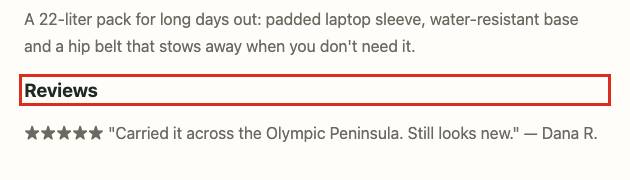
How to reproduce
- Open https://harborandpine.example/collections/all in Chrome or Edge.
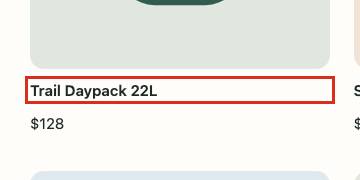
- Open DevTools (F12) › Elements, press Ctrl+F (Cmd+F on Mac) and search for: article:nth-child(1) > a[href$="trail-daypack"] > h3
- Or run the free axe DevTools browser extension on the page: it reports this as "heading-order".
Failing elements (3 shown)
<h3>Trail Daypack 22L</h3><h3>Reviews</h3><h3>Started on the trail</h3>Pages affected (7)
- https://harborandpine.example/collections/all
- https://harborandpine.example/products/trail-daypack
- https://harborandpine.example/pages/about
- https://harborandpine.example/products/pine-wool-beanie
- https://harborandpine.example/products/enamel-camp-mug
- https://harborandpine.example/products/harbor-lantern
- https://harborandpine.example/products/insulated-bottle
How to fix it
General guidance- Adjust the heading levels in the affected sections so they go in order without skipping levels.
- Change only the tag, not the visual style (use CSS classes for size).
Code
Implementation examples for your developer. We don't have your theme's source code, so file locations are hints, not exact paths.
<h3>Trail Daypack 22L</h3><h2 class="h3">Trail Daypack 22L</h2>Use the level that follows the previous heading on the page (often one level up), and keep the look with a class. Check the page outline before changing it.
<h3>Reviews</h3><h2 class="h3">Reviews</h2>Use the level that follows the previous heading on the page (often one level up), and keep the look with a class. Check the page outline before changing it.
<h3>Started on the trail</h3><h2 class="h3">Started on the trail</h2>Use the level that follows the previous heading on the page (often one level up), and keep the look with a class. Check the page outline before changing it.
Fix with AIShow the prompt
Paste this into ChatGPT, Claude, Cursor or Copilot together with your theme file. Review the change before you publish it.
I run a Shopify store (Online Store 2.0 theme, Liquid templates) at harborandpine.example. An accessibility test found this problem and I want to fix it in my theme.

Problem: Heading levels should only increase by one.
Where: 7 instances on 7 pages, for example /collections/all, /products/trail-daypack, /pages/about, /products/pine-wool-beanie.

One failing element, as the browser rendered it:
```html
<h3>Trail Daypack 22L</h3>
```

Why it matters: Screen reader users navigate by headings. This is a best practice supporting WCAG 1.3.1.

What needs to change:
- Adjust the heading levels in the affected sections so they go in order without skipping levels.
- Change only the tag, not the visual style (use CSS classes for size).

A suggested change (Your theme code (search it for the markup shown)):
```html
<h2 class="h3">Trail Daypack 22L</h2>
```

Rules for your answer:
- Show the exact edit as before and after, and name the file or setting it goes in. If you need to see my file first, ask me to paste it.
- Keep the visual design and all existing behaviour the same.
- Don't invent product names, prices or text; use placeholders I can fill in.
- End with how I can check the fix myself.
- Include how to confirm it with the keyboard and a screen reader.
Check your fix
- Re-scan and check the heading outline with a browser extension such as HeadingsMap.
Detailed guidance: https://dequeuniversity.com/rules/axe/4.13/heading-order?application=playwright
Needs manual review
Automated tests flagged these but couldn't decide, for example text over an image or content that may not fit a phone screen. They are not counted as failures. Ask your developer to check each one.
- Needs reviewWCAG 4.1.3
Keyboard journey: Add to cart with the keyboard
Enter on Add to cart worked (the cart count in the header changed, an “added to cart” message appeared), but we found no status message or focused dialog, so screen reader users may not hear that the item was added.
1 instance on 1 page · How to check this
- Needs reviewWCAG 1.4.10
Product page may not fit a narrow screen without scrolling sideways
At 320 CSS pixels wide (the same as 400% zoom), the page is 200px wider than the screen. Data tables and maps may scroll; text and controls should not.
2 instances on 1 page · How to check this
Elements to check (2 shown)
div.icons <div class="icons"> <button type="button"><svg viewBox="0 0 24 24" fill="none" stroke="currentColor" stroke-width="2"><circle cx="11" cy="11" r="7"></circle><path d="M20 20l-3.5-3.5"></path></svg></budiv <div> <p style="color:#6a6a60;font-size:14px">Harbor & Pine</p> <h1>Trail Daypack 22L</h1> <p class="price" style="font-size:22px">$128<span class="compare">$150</span></p> <p class="opt-label">Si - Needs reviewWCAG 1.4.10
Home page may not fit a narrow screen without scrolling sideways
At 320 CSS pixels wide (the same as 400% zoom), the page is 55px wider than the screen. Data tables and maps may scroll; text and controls should not.
3 instances on 1 page · How to check this
Elements to check (3 shown)
div.icons <div class="icons"> <button type="button"><svg viewBox="0 0 24 24" fill="none" stroke="currentColor" stroke-width="2"><circle cx="11" cy="11" r="7"></circle><path d="M20 20l-3.5-3.5"></path></svg></buarticle.card <article class="card"><span class="badge">Sale</span><a href="/products/trail-daypack"><img src="/img/beanie.svg"><h3>Pine Wool Beanie</h3></a><p class="price">$32<span class="compare">$40</span></p><button.btn.light <button class="btn light" type="submit">Subscribe</button> - Needs reviewWCAG 1.4.3
Elements must meet minimum color contrast ratio thresholds
Element's background color could not be determined because element contains an image node
1 instance on 1 page · How to check this
Elements to check (1 shown)
h1 <h1>Gear for the long way home</h1>
Re-test your fixes
When your developer has made changes, re-test. We run the same automated checks on the same pages, the keyboard test and the keyboard journey again, and show which issues we can no longer reproduce. 5 re-tests are included.
Re-tests run on paid reports.
Manual checks
Automated tools can't judge these. Do them before you consider the work done.
- Complete checkout using only the keyboard: our automated journey stops at the checkout button and never enters checkout.
- Repeat with a screen reader (VoiceOver on Mac: Cmd+F5; NVDA on Windows) and confirm prices, variants and errors are announced.
- Zoom the browser to 200% and confirm nothing overlaps or disappears.
- Check that product and brand videos have accurate captions.
- Submit forms with mistakes (newsletter, contact, checkout) and confirm errors are described in text.
- Check that carousels and pop-ups can be paused or closed, including with the Escape key.
Draft accessibility statement
Edit the bracketed parts and publish it on a page linked from your footer.
Accessibility statement for harborandpine.example

We want everyone to be able to shop on harborandpine.example, including people who use screen readers, keyboard navigation, magnification or other assistive technology. We aim to meet the Web Content Accessibility Guidelines (WCAG) 2.2 at Level AA.

What we do
- We test our store with automated accessibility tools and fix the issues they find.
- We test key shopping steps (browsing, product pages, cart and checkout) with a keyboard and a screen reader.
- We review third-party apps and widgets for accessibility before adding them.

Known limitations (as of September 24, 2026)
- Keyboard access and focus (WCAG 2.1.1). We plan to fix this by 2026-10-08.
- Links and buttons without names (WCAG 2.4.4, 4.1.2). We plan to fix this by 2026-10-08.
- Images without text alternatives (WCAG 1.1.1). We plan to fix this by 2026-10-08.
- Form fields without labels (WCAG 4.1.2). We plan to fix this by 2026-10-08.
- Low color contrast (WCAG 1.4.3). We plan to fix this by 2026-10-08.

Feedback and help
If you have trouble using any part of our store, contact us at [your email] or [your phone number]. Tell us the page and the problem, and we will help you complete your purchase and respond within 5 business days.

This statement was prepared on September 24, 2026 and will be reviewed at least once a year.
Evidence log
Each page was loaded in Chromium and tested with axe-core 4.13.0. The SHA-256 hash identifies the raw results for each page.
| Page | Tested (UTC) | HTTP | Issues | SHA-256 |
|---|---|---|---|---|
| Home pagehttps://harborandpine.example/ | 2026-09-24 14:05:00 | 200 | 15 | da1e5470a57859a864332912dd1e4f62b4c4f64487ba144865b74879519599a3 |
| Collection pagehttps://harborandpine.example/collections/all | 2026-09-24 14:05:09 | 200 | 20 | 28d8dfcf5ca953af353264a930a351bea3cf23f98a303874b32e5da355a4c8b0 |
| Product pagehttps://harborandpine.example/products/trail-daypack | 2026-09-24 14:05:18 | 200 | 20 | 68a173ddfd16eeeef5e36d6c0fa9d426769f0d96e358c5e35b67608dd84139b4 |
| Carthttps://harborandpine.example/cart | 2026-09-24 14:05:27 | 200 | 12 | 5b7945c2cdf779dcef2bd8975d96eb8f42d8dedbf10e767ec80199dd22ce257c |
| Content pagehttps://harborandpine.example/pages/about | 2026-09-24 14:05:36 | 200 | 9 | daf61ae856358a574e63f9357db0bfd9ae6079065acf3aebd5b3c5a7f460e53f |
| Additional pagehttps://harborandpine.example/products/pine-wool-beanie | 2026-09-24 14:08:00 | 200 | 20 | f708ccd7de34dfb65d59d3716580b6ec15a6420020c8387fa4da4e2ff5bd52d3 |
| Additional pagehttps://harborandpine.example/products/enamel-camp-mug | 2026-09-24 14:08:07 | 200 | 19 | c619bcd29e89d06099d174b9fc19305a42f2fa9bdddb600a750c867fc7477022 |
| Additional pagehttps://harborandpine.example/products/harbor-lantern | 2026-09-24 14:08:14 | 200 | 20 | 5720b7433b75050ba413ac74c2bd726b0620aaa68f7918083052383257d5c418 |
| Additional pagehttps://harborandpine.example/products/insulated-bottle | 2026-09-24 14:08:21 | 200 | 19 | 6f1972c22e477c9a63e2dfde1123ed759718f6a75e1606b23f208848691510fd |
Scope and method
What we tested
- 9 pages (home page, collection page, product page, cart, content page, additional page) loaded in Chromium at 1366×900.
- axe-core 4.13.0 rules for WCAG 2.0, 2.1 and 2.2 Level A and AA, plus best-practice rules (shown as P3).
- A keyboard test: 40 Tab presses on the home page, looking for traps and missing focus indicators.
- A keyboard-only shopping journey from the home page to the checkout button (see above).
- A reflow check at 320 CSS pixels wide on home page and product page (WCAG 1.4.10).
What we didn't test
- Checkout and payment pages, form submissions, account and logged-in pages.
- What a screen reader actually announces, beyond the automated rules.
- Video captions and audio descriptions, PDF documents, and content inside third-party frames.
- Plain language, cognitive accessibility and anything else that needs human judgement (see Manual checks).
How to read the results
- Verified failure
- An automated test or the keyboard journey failed, with the evidence shown.
- Needs review
- A test flagged something it couldn't decide; a person should check it.
- Passed
- The automated rule found no failures on the pages tested.
- Not tested
- Outside what automated testing can cover here; see Manual checks.
Get this report for your website.
Start with the free scan to see your issues and how they match your letter. The Accessibility Fix Report is $249, one time, and is ready in about 10 minutes.
Scan your website freeThis report describes the results of automated tests and gives remediation guidance. It is not legal advice and does not certify compliance with the ADA, the European Accessibility Act or any other law.